Help and explanation regarding your devices
A guide to your guest accommodation
Do you have a problem or a question about the appliances in your guest accommodation? Select below what you need help with.
Help and information about your smart TV
Go to your TV's settings menu
| Land | The Netherlands |
| Tuning type | DTV |
| Digital type | DVB-C |
| Scan type | Scan network |
| Frequency | 474000 |
| Network ID | 4444 |
| Modulation | 256-QAM |
| Symbol rate | 6900 |
Then press Enter or Start
For a number of TVs, you can select Ziggo as the network provider, meaning you have fewer follow-up steps to complete.
Then always check if the frequency is set to 474000 and the network ID to 4444. This is set to 5555 by default, which is incorrect for the Central and Northern Netherlands region.
You are using a Salora 32-inch smart TV. Below you will find the right information to help you get started quickly.
1: Remote control
not responding

Checklist
2: No channels
on my TV

Checklist
3: Quick Start
and other TV help

Quick start video simply explaining how your TV and modem work and how to troubleshoot any issues. Also available as a printable version.
Other helper tools
This online help tool from Ziggo gives you step-by-step insight into whether your TV is connected correctly.
Manufacturer's digital manual for setting up the TV.
4:
Switch on Welna
Send us a WhatsApp
Scan the QR code and go directly to WhatsApp.
Click on the button and contact us via WhatsApp.
Or use our form
If you would like a little more help with your report or perhaps do not have WhatsApp, you can easily report your TV/Ziggo outage using this smart form.
We always respond within 4 hours, and often even faster.
You are using a Diamant 40-inch smart TV. Below you will find the right information to help you get started quickly.
1: Remote control
not responding

Checklist
2: No channels
on my TV

Checklist
3: Quick Start
and other TV help
Quick start video simply explaining how your TV and modem work and how to troubleshoot any issues. Also available as a printable version.
Other helper tools
This online help tool from Ziggo gives you step-by-step insight into whether your TV is connected correctly.
Manufacturer's digital manual for setting up the TV.
4:
Switch on Welna
Send us a WhatsApp
Scan the QR code and go directly to WhatsApp.
Click on the button and contact us via WhatsApp.
Or use our form
If you would like a little more help with your report or perhaps do not have WhatsApp, you can easily report your TV/Ziggo outage using this smart form.
We always respond within 4 hours, and often even faster.
You are using a PEAQ 40-inch smart TV. Below you will find the right information to help you get started quickly.
1: Remote control
not responding

Checklist
2: No channels
on my TV

Checklist
3: Quick Start
and other TV help
Quick start video simply explaining how your TV and modem work and how to troubleshoot any issues. Also available as a printable version.
Other helper tools
This online help tool from Ziggo gives you step-by-step insight into whether your TV is connected correctly.
Manufacturer's digital manual for setting up the TV.
4:
Switch on Welna
Send us a WhatsApp
Scan the QR code and go directly to WhatsApp.
Click on the button and contact us via WhatsApp.
Or use our form
If you would like a little more help with your report or perhaps do not have WhatsApp, you can easily report your TV/Ziggo outage using this smart form.
We always respond within 4 hours, and often even faster.
You are using a TLC 42-inch smart TV. Below you will find the right information to help you get started quickly.
1: Remote control
not responding

Checklist
2: No channels
on my TV

Checklist
3: Quick Start
and other TV help
Quick start video simply explaining how your TV and modem work and how to troubleshoot any issues. Also available as a printable version.
Other helper tools
This online help tool from Ziggo gives you step-by-step insight into whether your TV is connected correctly.
Digital manuals from the manufacturer to set up the TV and connect to Wi-Fi.
4:
Switch on Welna
Send us a WhatsApp
Scan the QR code and go directly to WhatsApp.
Click on the button and contact us via WhatsApp.
Or use our form
If you would like a little more help with your report or perhaps do not have WhatsApp, you can easily report your TV/Ziggo outage using this smart form.
We always respond within 4 hours, and often even faster.
Help and information about your Ziggo Wi-Fi connection
You are using a black Ziggo modem. Below you will find the correct information to quickly resolve your issue.
Step 1:
Check connections
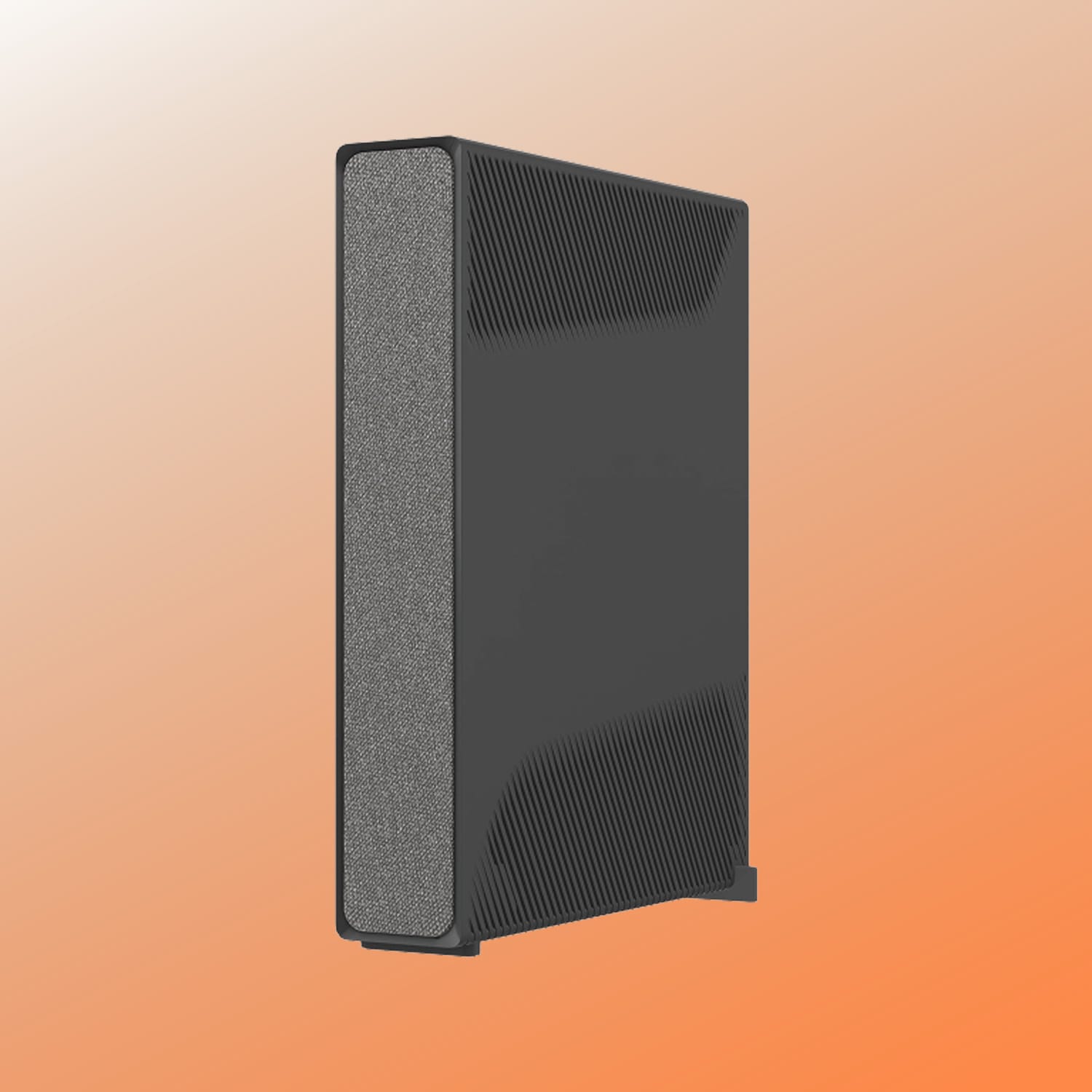
Hardware and cabling
- 1Check if modem has power
- 2Check if a COAX cable runs from the modem to the wall socket
- 3Want to check really thoroughly? Then use the Ziggo online help tool.
This online help tool from Ziggo gives you step-by-step insight into whether the connections are correct.
Digital quick guide to easily install the modem.
Solved or not?
Step 2:
Check modem status
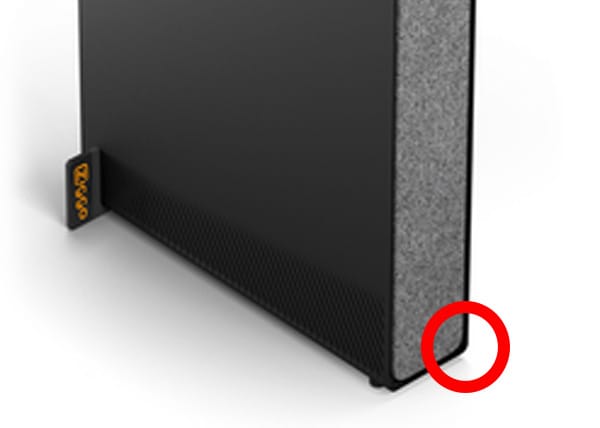
LED status overview
Reset and updates
- 1Unplug the modem for 10 seconds and then switch it back on.
- 2Wait 15 minutes for the modem to be fully updated.
- 3Then the light is white or flashes red.
Solved or not?
Step 3: Quick Start
modem and TV help
Quick start video simply explaining how your TV and modem work and how to troubleshoot any issues. Also available as a printable version.
Solved or not?
Step 4:
Switch on Welna

Send us a WhatsApp
Scan the QR code and go directly to WhatsApp.
Click on the button and contact us via WhatsApp.
Or use our form
If you would like a little more help with your report or perhaps do not have WhatsApp, you can easily report your Ziggo outage using this smart form.
We always respond within 4 hours, and often even faster.
Solved or not?
You are using a white Ziggo modem. Below you will find the correct information to quickly resolve your issue.
Step 1:
Check connections
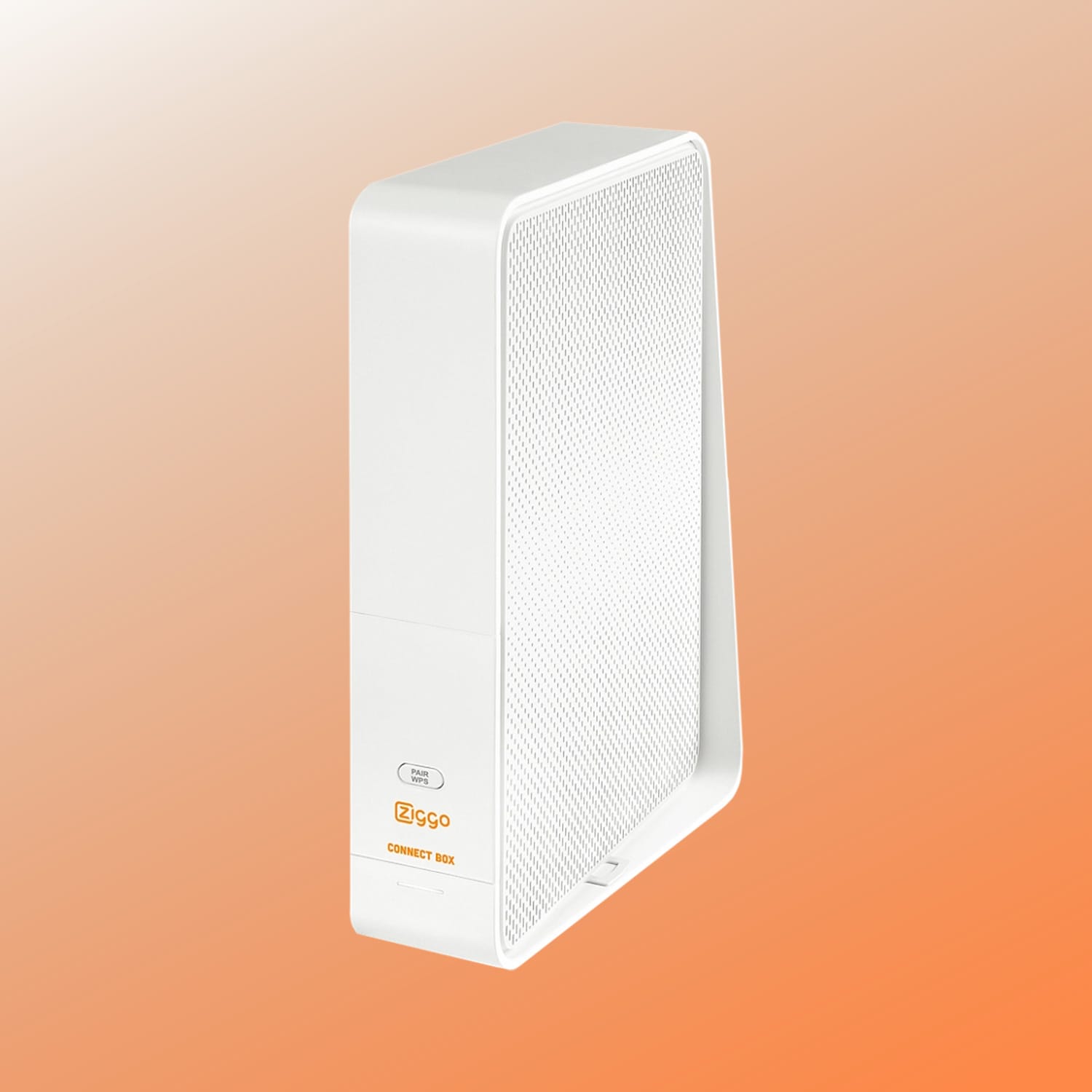
Hardware and cabling
- 1Check if modem has power
- 2Check if a COAX cable runs from the modem to the wall socket
- 3Want to check really thoroughly? Then use the Ziggo online help tool.
This online help tool from Ziggo gives you step-by-step insight into whether the connections are correct.
Digital quick guide to easily install the modem.
Solved or not?
Step 2:
Check modem status
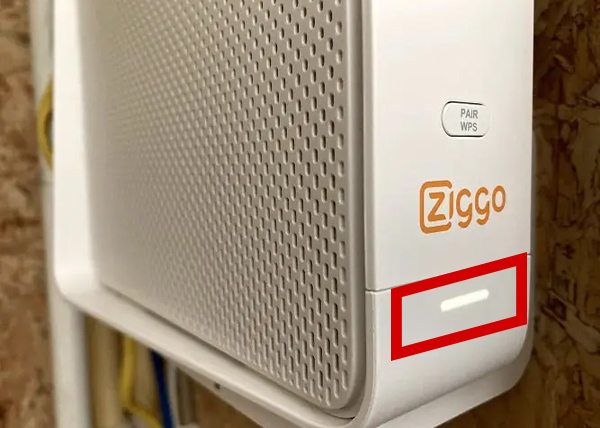
LED status overview
Reset and updates
- 1Unplug the modem for 10 seconds and then switch it back on.
- 2Wait 15 minutes for the modem to be fully updated.
- 3Then the light is white or flashes red.
Solved or not?
Step 3: Quick Start
modem and TV help
Quick start video simply explaining how your TV and modem work and how to troubleshoot any issues. Also available as a printable version.
Solved or not?
Step 4:
Switch on Welna
Send us a WhatsApp
Scan the QR code and go directly to WhatsApp.
Click on the button and contact us via WhatsApp.
Or use our form
If you would like a little more help with your report or perhaps do not have WhatsApp, you can easily report your Ziggo outage using this smart form.
We always respond within 4 hours, and often even faster.
Solved or not?
Log in to your Wi-Fi network
Internet access with ticket

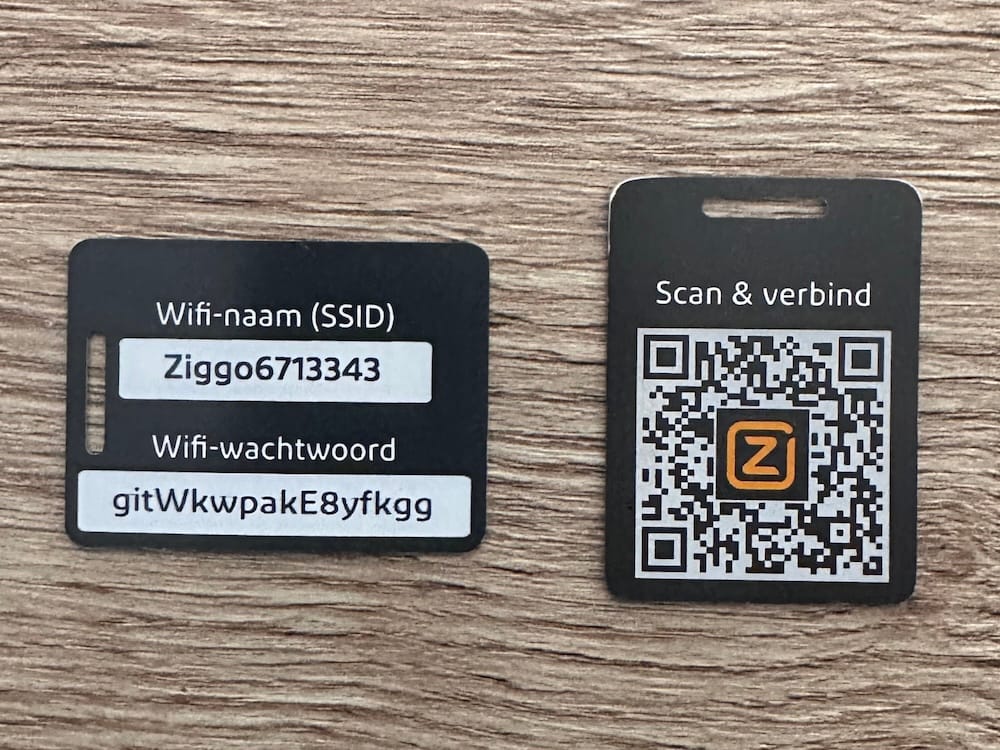
Internet access without a ticket
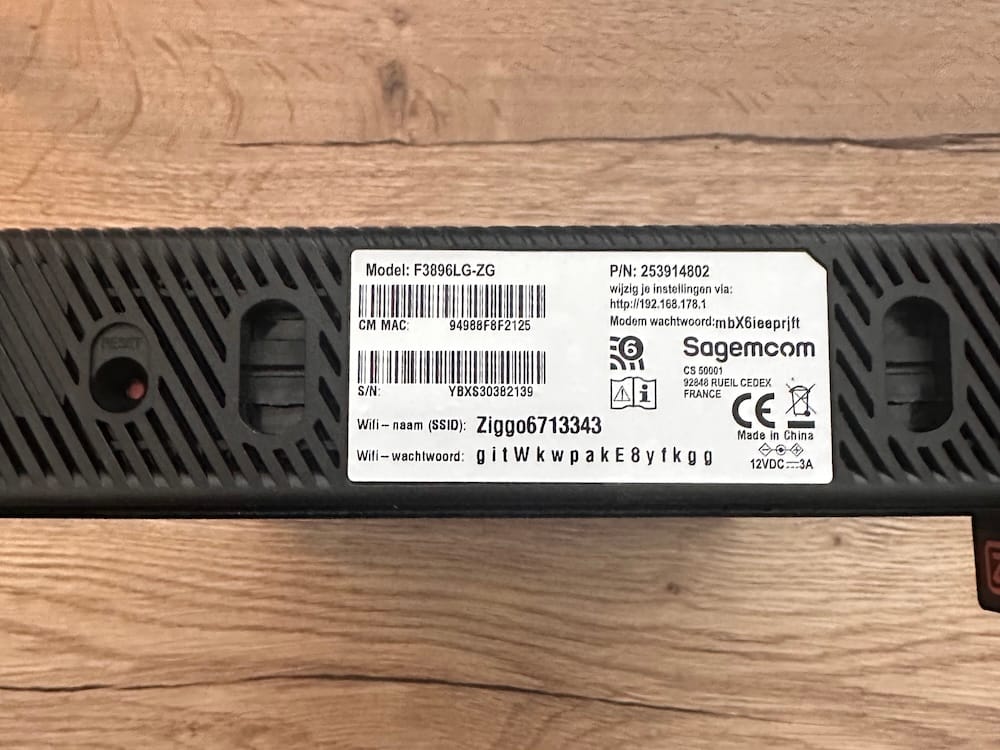

Internet access with ticket


Internet access without a ticket
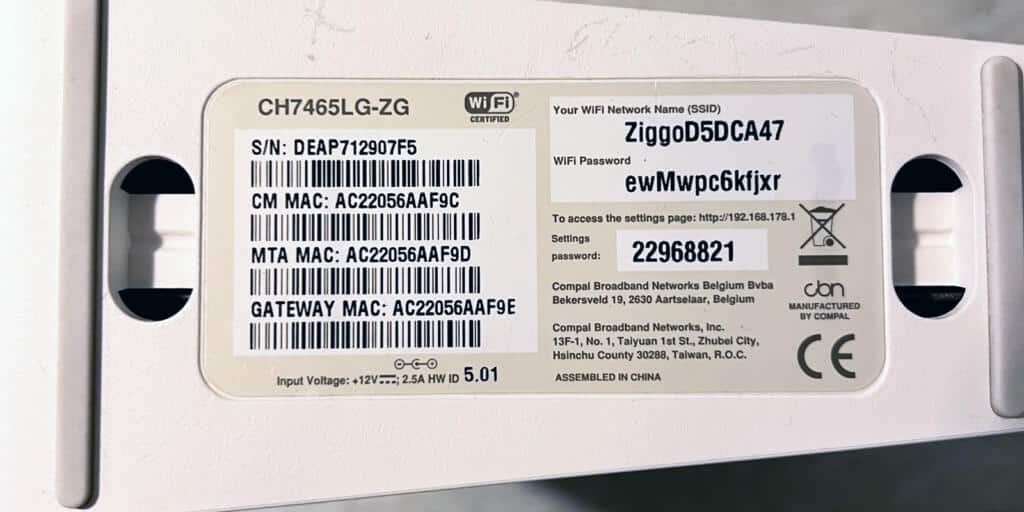
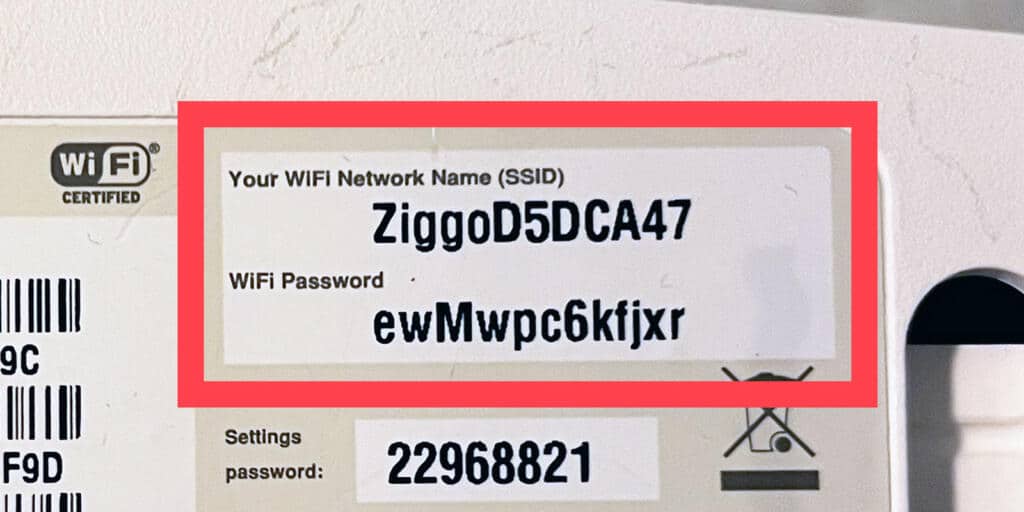
Click & Ready
5G modem
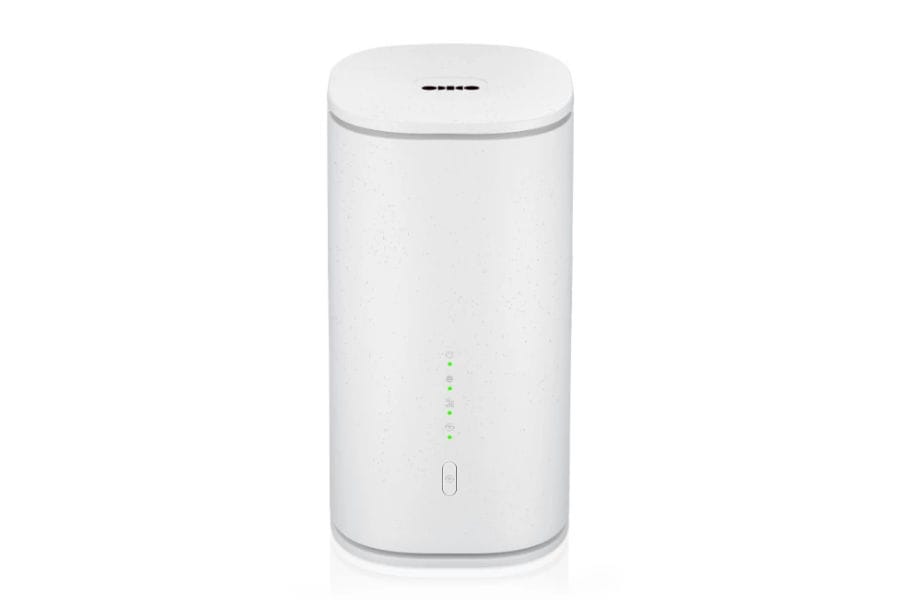
In principle, no manual is needed for this product. You can log in immediately using the QR code on the bottom of the device. However, please keep in mind that not every location in the home can count on a good connection. Preferably, place this modem on the windowsill by the window.
For a detailed explanation:
Go to the online manual or watch the explainer video.

Explanation of other devices and items


Ask Welna your question!
Or email us …
For general questions:
info@welnawoningservice.nl
For technical questions:
online@welnawoningservice.nl